Searching for parts in Studio is one of the first things new users try, and often the first places they get stuck.
If a search isn't returning results, it's usually a terminology mismatch, not a missing part.
This article will help you understand how parts are named, how to translate what you see into searchable language, and what to do when a search comes up empty.
LEGO® Terminology
Part names in Studio follow the official LEGO® catalog naming conventions, which don't always match what the LEGO fan community calls them. If you've grown up calling something a "cheese slope" or a "jumper plate," you might not find it on the first try, and that's completely normal.
The good news is that once you understand the naming patterns, searching becomes much faster.
Common Terms vs. Studio Names
Community nicknames and catalog names often describe the same part in different ways. Here are some common examples:
| What you might call it | Studio/Catalog name |
| Cheese slope | Slope 1 x 1 x 0.667 |
| SNOT brick | Brick, Modified with Studs on Side |
| Jumper plate | Plate, Modified 1 x 2 with 1 Stud |
| Clip | Bar Holder / Clip |
Part Types
Knowing a part's shape can help you find it. Here's a quick guide to the main part types in Studio.
Bricks
The standard building block. Bricks are taller than plates and have studs on top. Most bricks follow a size format like 1x2, 2x4, etc. Modified bricks have additional features like side studs or holes.
Plates
Plated are thinner than bricks. One plate equals one-third the height of a brick. Plates have studs on top, and modified plates have additional features like clips or offset studs.
Tiles
Flat plates with no studs on top, giving a smooth surface. Search "tile" followed by the size (e.g., "tile 1x2").
Slopes
Angled pieces. Defined by their dimensions and angle (e.g., "Slope 45 2x2"). Inverted slopes angle in the other direction.
Curved slopes
Rounded or bowed pieces. Search "slope, curved" to find this family.
Technic
Pieces designed for mechanical builds, including beams, pins, axles, connectors, and gears. Start your search with "Technic" followed by the piece type.
Helpful attributes to include in your search:
- Size: Use standard stud dimensions (1x1, 1x2, 2x4, etc.)
- Profile: Describe the shape (slope, curved, flat, angled)
- Connection type: Stud, bar, pin, clip
Browse the parts
The main way to find parts in the Building palette is to look at them and scroll through the parts (C) but there are many many parts.
Check the palette
Use the palette dropdown (A) to choose a palette.
The main palette contains all the parts known to Studio, but you can have custom palettes or you can hide parts from the Master palette.
Use the search box
The search box at the top of the Building Palette (D) allows you to quickly find the parts you want.
You can enter a BrickLink ID or salient search terms. For instance, to find the Plate, Round 2x2, you can enter:
- 4032, its BrickLink ID,
- Plate round, or round plate, its main traits,
- or 2x2, its size.
The parts will be filtered at each keypress, so you may not even have to type everything before finding the part you want. The default shortcut Ctrl F activates the search box directly.
How to Search Smarter
Successful users tend to follow a similar pattern when searching for parts. Here's a tiered approach that works well:
- Start broad. Search by shape category or function. Try "hinge," "slope," "pin," or "clip" before adding any other details. This gives you a starting point even if you're not sure of the exact name.
- Add a size. Once you have results, narrow them down by adding dimensions. For example, "slope 2x2" or "plate 1x4."
- Try alternate terms. If results still aren't right, try a different way of describing the part. If "cheeseslope" didn't work, try "slope 1x1." If you're stuck, search BrickLink.com to find the official catalog name, then search again in Studio.
- Browse by category. When searching isn't working, browsing is a good alternative. Use the category sidebar to explore part families visually. This works especially well when you know what the part looks like but not what it's called.
- Search by part ID. If you have a part number from BrickLink® or the LEGO catalog, this is the most reliable search method. Part ID searches consistently return the right result on the first try. Go to our Part ID help page here for more details.
Pro tip: Getting into the habit of searching by part ID early on will save you a lot of time. Once you find a part on BrickLink.com, grab its ID and use that in Studio for a direct match every time.
No Results? Try This
An empty results page doesn't necessarily mean the part doesn't exist in Studio. It usually means the search term needs adjusting. Here are the most common reasons a search returns nothing:
- A spelling error or typo
- Using a community term instead of the Catalog name
- The search term is too specific
- The part exists but isn't in Studio's library
Find similar parts
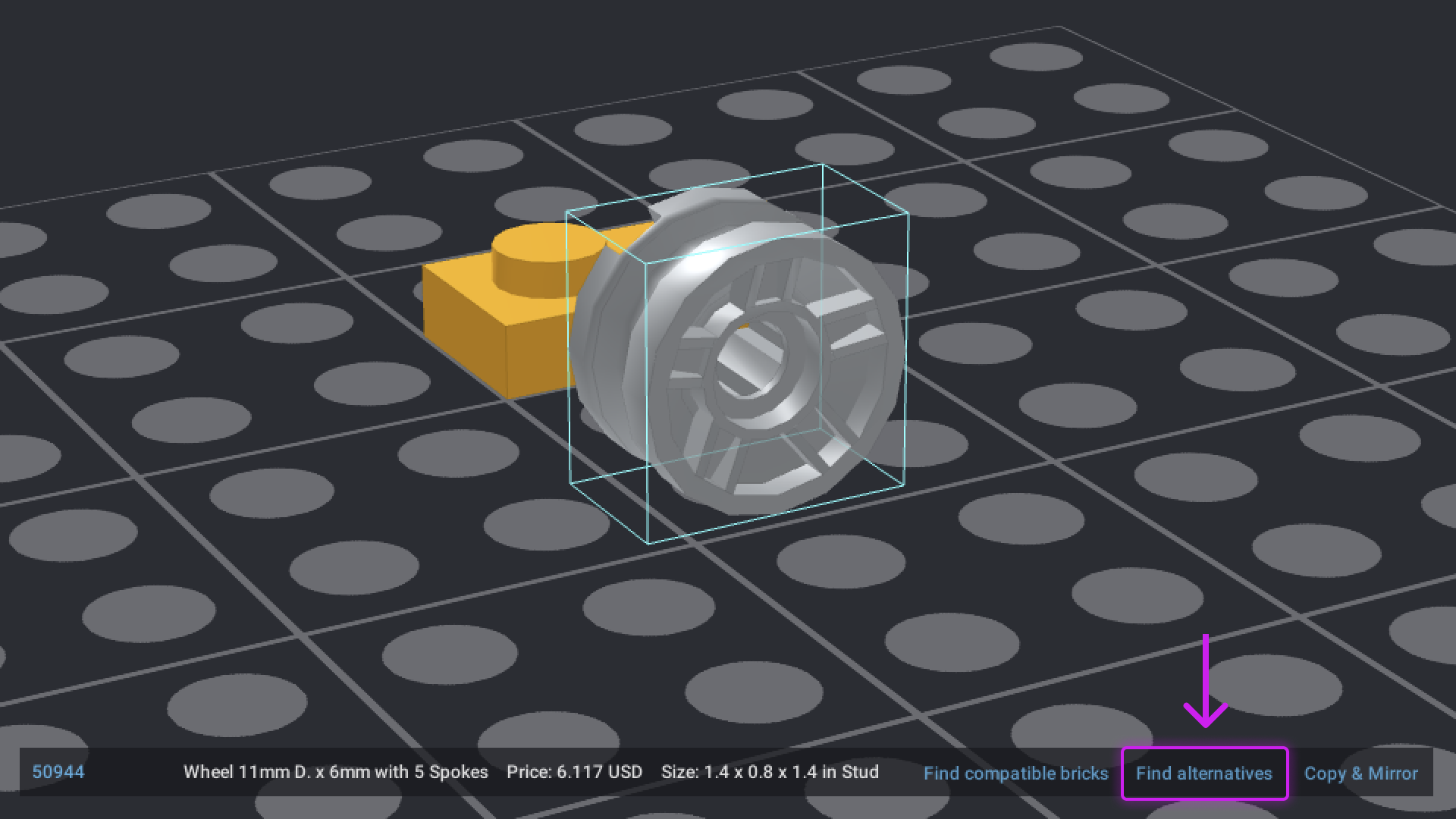
When you select a part in the build, a button Find alternatives appears in the Status line at the bottom of the Viewport. Clicking on Find alternatives will fill the search box with salient traits in the name of the part, thus allowing to find similar parts in the palette. For instance, if you select a 15573 Plate, Modified 1 x 2 with 1 Stud with Groove and Bottom Stud Holder (Jumper) and click on Find alternatives, the Building palette will search for Plate Modified 1 x 2.
Find compatible parts
When you select a part in the build, a button Find compatible bricks appears in the Status line at the bottom of the Viewport.
Clicking on Find compatible bricks will fill the search box with a special function, =compatible(“<ID>”), that will filter parts that can connect to the selected brick.
For instance, if you select a 4024 Wheel 8mm D. x 6mm, and click on Find compatible bricks, the Building palette will show all the tires that can fit that wheel and all the special plates and bricks on which it can attach.
You can use the function directly by entering =compatible(“4024”) in the search box.
The Replace tool can also suggest parts in order to replace the selected part.